The App Store Just Changed How Apps Look in Search
The short answer
App Store header and search result assets: what to use and what Apple rejects
On 5 October 2026, Apple added two optional slots to every App Store listing: a header at the top of your product page, and one image or video that can show in search results instead of your screenshots. Make your app's purpose obvious at a glance, keep prices, rankings and Apple badges out, and submit it through the Asset Library without an app update.
Key facts
- 2 new slotsA product page header and a search result asset. Both are optional.Apple Developer News, Showcase your apps with new assets on the App Store, 5 October 2026
- 5 to 30 sVideo length for either slot. Videos loop and start muted.App Store Connect Help, Creative assets specifications
- 0 app updatesAssets can be submitted on their own through the Asset Library.App Store Connect Help, Manage your App Store assets
- April 2027From then, every app or game submitted needs iPhone Duo screenshots.Apple Developer News, Prepare and submit your apps for iPhone Duo, 5 October 2026
Chapters
Transcript
Edited for readingCoral is a fictional document scanner app; its screens are illustrative. Every rule comes from Apple's own pages, listed under Sources.
What changed in App Store search?Watch from 0:00
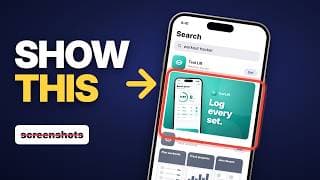
Since 5 October, an app in App Store search can show one wide image or video instead of its screenshots. It's the biggest thing a searcher sees of your app. And there's a second new slot: a banner at the top of your product page.
Both are optional. Add nothing, and people keep seeing your screenshots.
But careful. Apple rejects these assets for things you see on app ads every day. So here's what to put in each slot, what gets rejected, and how to submit one today, without an app update.
Our example is Coral, a made-up document scanner. Every rule is from Apple's own pages, as of 7 October, and sourced below.
What actually changed?Watch from 0:39
Apple calls them creative assets. They're optional, and separate from your screenshots. They show in two places: the header sits at the top of your product page, and the search asset shows in search results. In Apple's words, "instead of showing the default app screenshots, you can use an impactful image or video".
One catch. Apple says these appear on iOS 27 and iPadOS 27 and later. But we've already seen a header on an iPhone running iOS 26.
Each one can be an image, or a video of 5 to 30 seconds. Videos loop, and they start muted. In search, for now, they can't be unmuted. On your product page, people can tap to hear them.
And if you add nothing? Search shows what it shows today: your in-app events, previews and screenshots.
Two new tools came with it. An Asset Library, to keep your images and videos in one place. And a preview, to see your page and your search result before you submit. The preview works in light and dark mode, and across devices and orientations. Use it before you submit anything.
Our take: the search asset matters more than the header. A searcher sees it before they ever open your page.
What should the search asset show?Watch from 1:51
Apple's advice is blunt: state the obvious. People search for something specific, so your app's purpose should be clear at a glance. And show the real thing: the interface, the content, or the gameplay.
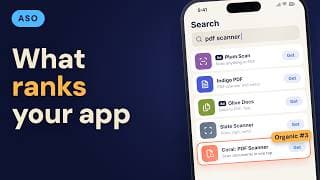
Here's Coral in a search for PDF scanner. Before: three screenshots, each a little busy. After: one wide image. Coral's scan screen, a crumpled receipt, and a clean PDF. Three words. Scan. Sign. Send.
The header is different. Apple says design it for a first-time visitor, around a single, clear idea. For Coral, that's the brand: its colour, its icon, and one short line.
Keep the important part in the centre. Apple warns the edges can get clipped on different devices and orientations.
And design for silence. Apple says your creative must work silently first. If you use a video, make it loop smoothly, with no visible jump. If you use words, keep them short. They should add to the picture, not describe it.
Your checkpoint: cover the words on your search asset. Can a stranger still tell what your app does?
What will Apple reject?Watch from 3:02
Now the part that gets assets rejected. Which of these three lines on Coral's search asset is allowed: "50% off this week", "#1 Scanner", or "Editor's Choice"?
None of them.
No prices or discounts. No website links, and no copyright symbols. No claims you can't verify, like number one, or awards you haven't received. And none of Apple's own badges, like Editor's Choice or App of the Day.
No logos or mentions of other platforms or stores. And this one surprises people: every asset must suit a 4+ age rating, even if your app is rated higher.
Our take: if a line would need a footnote, it doesn't belong on the asset.
Coral's fixed search asset keeps only its own promise. Scan, sign, send.
How do you ship it without an app update?Watch from 3:51
Here's the part that saves you a release. You can submit creative assets on their own, through the Asset Library. No new app version needed. Apple reviews them against your app's latest version.
Once one is approved, you can put it on your live page and publish. Again, no new version. You can also add them with a new version; then they go live when that version is released.
In App Store Connect, they sit under Product Page Information, in a tab called Header and Search Results. Upload one universal asset for both slots, or pick a separate one for each.
So you can get a holiday banner approved today, and switch it on when the season starts.
Two limits. A brand-new app has to send its assets with its first version. And Apple's help doesn't describe a scheduler, so you publish by hand.
Our take: get a few assets approved before you need them. Then a seasonal change is a click, not a release.
Can each keyword get its own asset?Watch from 4:44
Creative assets work on custom product pages, and you can test them with product page optimization.
At its June conference, Apple went further. It said custom product pages would let you show a tailored asset for different keywords. As of 7 October, Apple's help pages don't explain how yet. If it works as announced, Coral could show a receipt for "scan receipts", and a signature for "sign PDF".
If you've seen our video, App Store Optimization 2026: How Search Ranking Works, it's the same split. Your words get you into a search. The picture helps decide if people tap.
What about Apple Ads? In June, Apple said you'd be able to use your own creative assets in ads later this year. As of 7 October, Apple's Ads help page still says coming soon. So for now, it isn't live.
Our take: plan one set of pictures for both. One map of keywords, pages and assets, for search and for ads.
What about iPhone Duo?Watch from 5:43
One more change landed the same day. Apple's foldable, iPhone Duo, reaches customers on 23 October, in more than 70 countries.
From April 2027, every app or game you submit will need iPhone Duo screenshots. There are two sizes, one for the outer screen and one for the inner screen. Each works upright or sideways, and you can upload up to 10 per size. The new preview tool can show your listing on iPhone Duo before you submit.
Our take: don't just stretch your iPhone screenshots. Show what the bigger screen does better.
What should you make this week?Watch from 6:18
One: a search asset that states the obvious. Your app in use, and a few words at most.
Two: a header built on one idea, with the key part in the centre.
Three: check both against the ban list. No prices, no unverifiable claims, no Apple badges, no other stores, nothing above 4+.
Four: submit them through the Asset Library, so they're approved before you need them.
Five: test your search asset with product page optimization, instead of guessing.
Will it lift your downloads? We can't say yet. As of 7 October, we found no published results from a real test. So treat your first asset as a test, not a redesign. Keep what wins.
On 5 October, every listing got a new slot for a first impression. Now you know what to put in it.
Sources
- Apple Developer News, Showcase your apps with new assets on the App Store (5 October 2026)
- App Store Connect release notes (5 October 2026)
- App Store Connect Help, Creative assets specifications
- App Store Connect Help, Manage your App Store assets
- Apple Developer, App Store asset best practices
- Apple WWDC26, Enhance your presence on the App Store (session 205) (June 2026)
- Apple Ads news (8 June 2026)
- Apple Ads Help, Design your own ads with creative assets (checked 7 Oct 2026, "coming soon")
- Apple Developer News, Prepare and submit your apps for iPhone Duo (5 October 2026)
- App Store Connect Help, Screenshot specifications
- Apple Newsroom, Apple unveils iPhone Duo (9 September 2026)
Caveat: No published performance data on the new slots as of 7 October 2026. Keyword-specific search assets were announced at WWDC26 and aren't yet described in Apple's help pages. Using these assets in Apple Ads is announced, not live.